
Account, GitHub, Remote UI & IM Channels
Connect the GitHub App with scoped repository access, and stay in control away from your desk via Remote UI, mobile QR pairing, or Telegram, Feishu, and DingTalk.
Munk AI runs locally on your machine, keeping your code and environment under your control. Signing in with your Munk account unlocks three remote capabilities: scoped GitHub App integration, browser and mobile Remote UI, and direct IM channels via Telegram, Feishu (Lark), and DingTalk.
1. Sign In & Register Your Desktop Instance
- Open the Munk AI desktop app or visit the Login page on
munk.shand continue with GitHub. - Once signed in, your computer registers as a bound instance under your account and connects through the secure remote gateway (
remote.munk.sh).
2. Connect the GitHub App & Link Repositories
To let your agent team triage issues, pull code, or open pull requests safely, connect the official GitHub App:
- Install the GitHub App: Click GitHub App on the desktop home screen—or open Bound Instances on the website and click Connect GitHub App on your machine card.
- Attach Only the Repos You Want: Installing the GitHub App never auto-clones all of your repositories. Pick the specific repositories you care about in the desktop app and choose Clone or Link Local Directory to register them as local Codebases.
- Kick Off Work from GitHub Issues: Once a repository is linked, authorized collaborators can comment
/munk start(with optional instructions) on any GitHub Issue to trigger a new Work Item on your local runtime. - Credentials Stay Out of Agent Shells: GitHub installation tokens and Git write operations are brokered in memory by the Munk AI host—never injected into a coding agent's terminal environment.
3. Browser & Mobile Remote UI
When your agent team is running coding work items or scheduled shifts on your desktop, you don't need to sit in front of your monitor.
Before You Step Away
Because Remote UI connects directly to the runtime on your computer (not a separate cloud sandbox), make sure of two things before leaving your desk:
- Munk AI is running and signed in on your desktop.
- System sleep is disabled: In your OS power settings, prevent the computer from sleeping automatically while plugged in (turning off or locking the display is completely fine, but full system sleep will disconnect the machine).
Two Ways to Open Remote UI
- From the Website: Sign in to
munk.shfrom any browser, open Bound Instances, and click Remote UI on your machine card. - Mobile QR Pairing (One-Time Setup): Scan the Mobile Pairing QR code shown in the desktop app from your phone. Once paired, your phone can open the live workspace directly with short-lived security tickets—no repeated sign-ins required.
4. IM Channels: Telegram, Feishu & DingTalk
Prefer not to open a browser at all? You can pair a Telegram, Feishu (Lark), or DingTalk bot in Settings to talk to your AI company and approve requests straight from your favorite chat app:
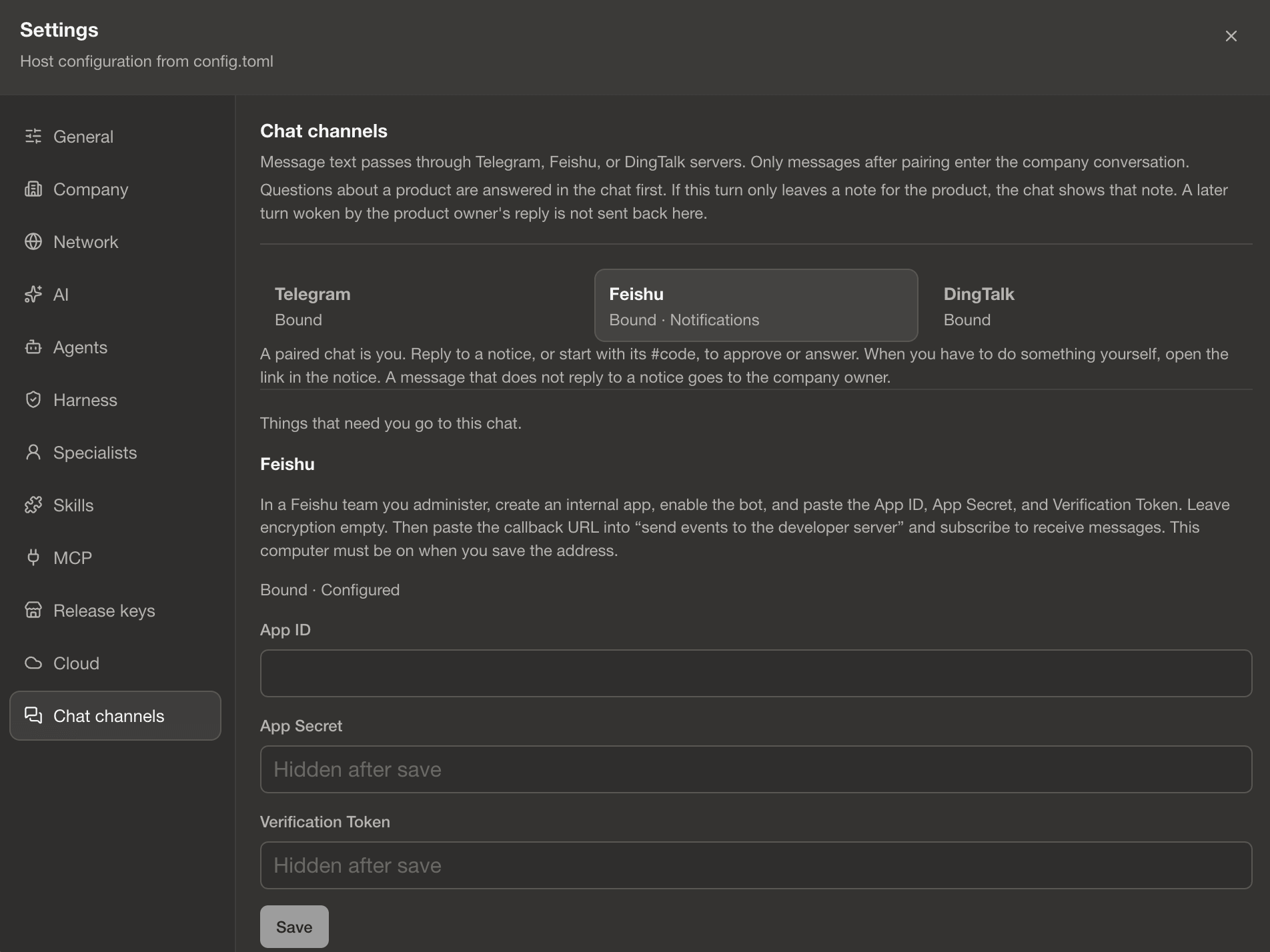
What You Can Do in Chat
- Message Your Company Owner Anytime: Send a direct message in your paired Telegram, Feishu, or DingTalk chat. It goes straight to your Company Owner agent, who coordinates the work and sends the result back to your chat when ready.
- Get Instant Push Notifications when Needed: Whenever a new request needs your call—an Approval (
approve), a Question (ask), a Human Assist (assist), or an owner Permission prompt—Munk AI sends a notification to your active IM channel. - Reply Inline to Approve or Answer:
- Approvals & Permissions: Simply reply to (quote) the notification—or prefix your message with its
#shortcode—and send Approve or Reject to unblock the workflow on the spot. - Questions (
ask): Reply with the option letter or your free-text answer. - Human Assist (
assist) & Goal Closeouts: For actions that require logging into a local browser or closing out a product goal, the bot sends a direct link to open the UI.
- Approvals & Permissions: Simply reply to (quote) the notification—or prefix your message with its
- Bot Credentials Stay Local: Your bot tokens and paired chat IDs are stored strictly in your local data directory (
im.json). They are never exported intoCompanyfile.yamlor exposed to coding agents.