
Munk AI
Usage
Remote UI
Keep the desktop online, then open the same workbench from the website to check progress and chat with agents.
Munk AI runs on your computer, and you can also open the same workbench from the website: check task progress, handle Inbox items, and chat with agents. Useful when you want to stay on top of work away from the desk.
Before you start
- Sign in on the desktop app
After Munk AI signs in on the machine, that machine registers as a bound instance under your account. - Disable system sleep (screen off and lock are fine)
In macOS System Settings → Battery / Energy, turn off options that put the Mac to sleep automatically (especially on Power Adapter).
You may turn the display off or lock the screen, but if the machine sleeps, Remote UI will not connect. - Keep Munk AI running
The desktop process needs to stay online. Closing the app usually makes remote access unavailable.
How to open Remote UI
- Sign in to the website with the same account
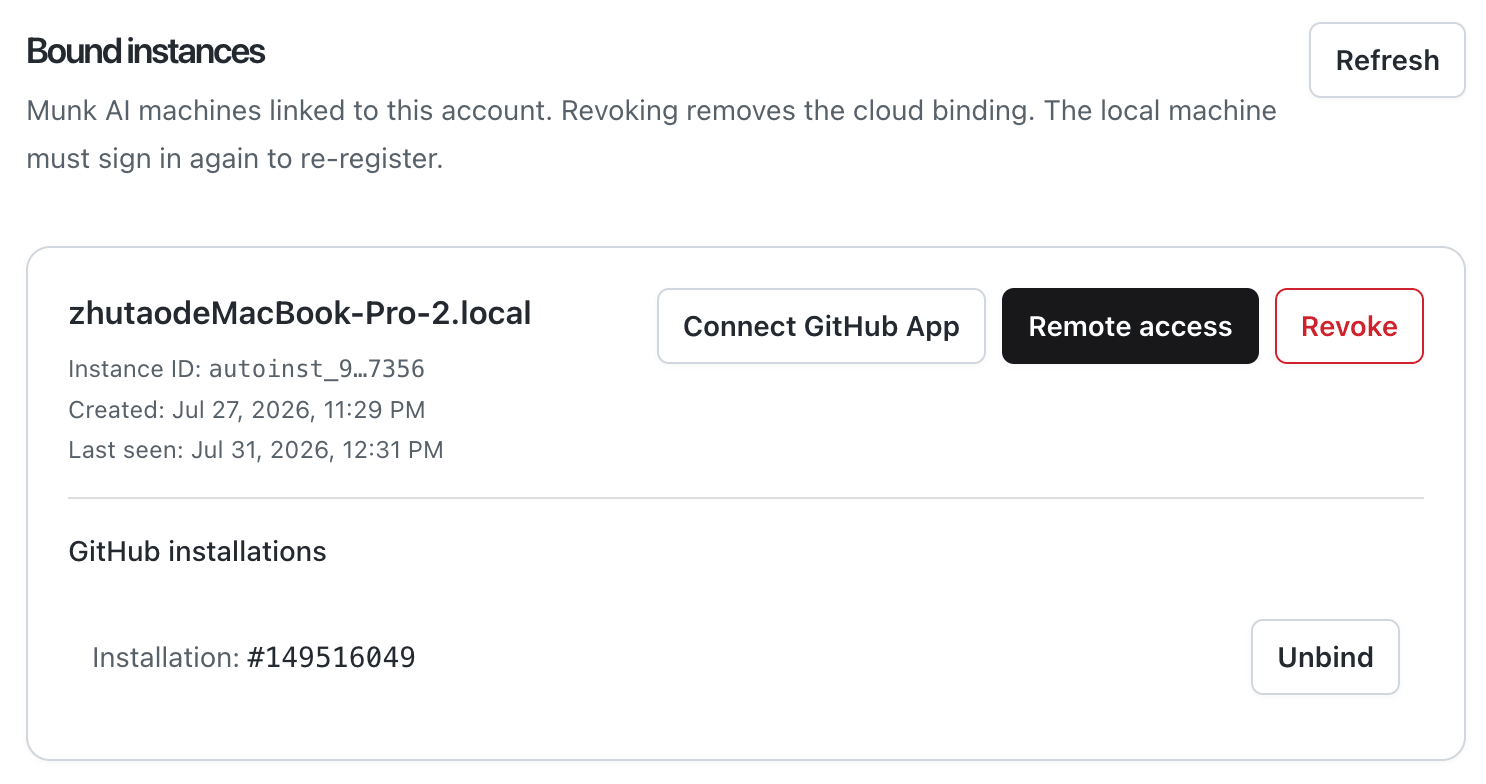
- Open Bound instances
- On the machine card, click Remote access
- The browser opens that instance’s Remote UI so you can follow progress, talk to agents, and handle human gates
If the list is empty, confirm the desktop app is signed in and online, then click Refresh.
Notes
- Remote UI attaches to a local instance bound to your account, not a separate cloud sandbox
- Revoking unbinds the cloud link; the machine must sign in again to re-register
- Use Last seen to check whether the machine is still awake